Connector in an AI assistant
A connector is the address of the Predok server that you add to an assistant. After that the assistant queries the database itself when you ask about people, places or archival sources.
The same three values everywhere:
- name:
Predok; - server address:
https://api.predok.ai/mcp; - sign-in: OAuth, that is, with your Google account, when the assistant opens the Predok sign-in page.
If the assistant's menu looks different from what is described below, look for “add custom connector” or “custom MCP server” and enter the same three values: interfaces change more often than the principle.
ChatGPT
Web version only. On the Pro plan you turn on Developer mode yourself (Predok only reads); on Business, Enterprise and Edu the workspace administrator turns it on. Steps checked against the OpenAI documentation on 11 October 2026.
-
Sign in at chatgpt.com.
-
Turn on Developer mode: Settings → Apps → Advanced settings.
-
Open Plugins. Press +, then Add custom MCP server.
-
Name
Predok, in the Server URL field the addresshttps://api.predok.ai/mcp. Authentication: OAuth.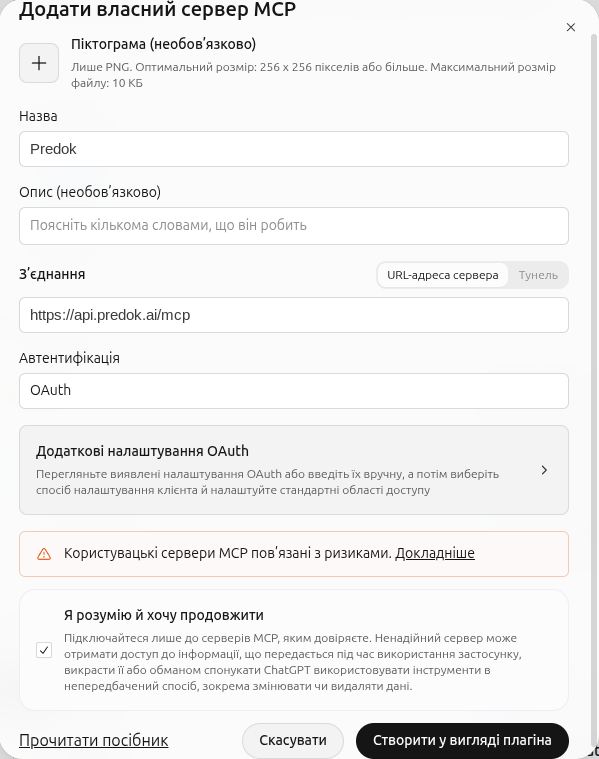
Name, server URL, and OAuth. -
Tick I understand and want to continue and press Create as a plugin. ChatGPT opens the Predok sign-in page. Sign in with Google and allow reading Predok.
-
Install the plugin. In the chat field, type @ and choose Predok.
Claude.ai
Steps checked against the Claude documentation in October 2026. The dialog for adding a connector may be on one screen or in two steps; the name and address are the same.
-
Sign in at claude.ai.
-
+ → Add connectors → Add custom connector.
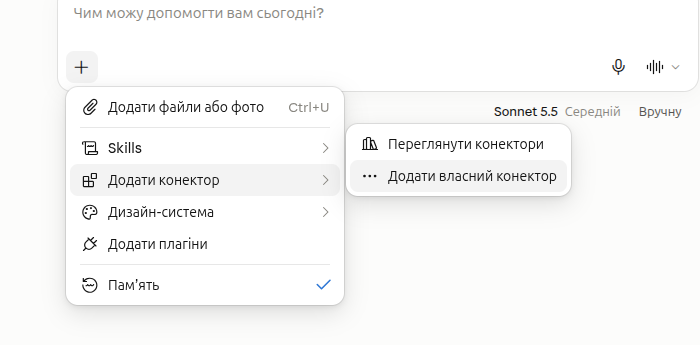
The + button in the chat field. -
Name
Predok, addresshttps://api.predok.ai/mcp.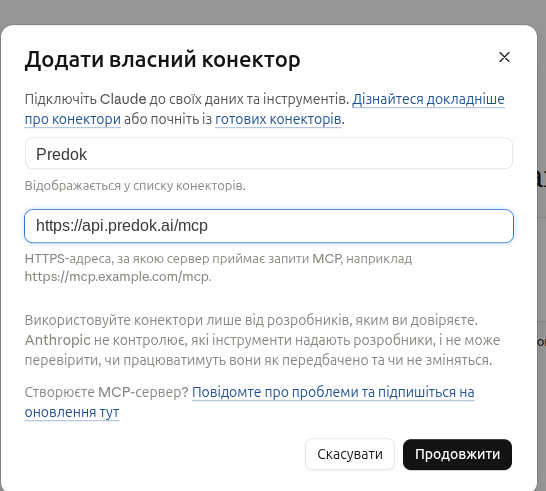
Name and URL. Then Continue. -
Claude opens the Predok sign-in page. Sign in with Google and allow the connector to read Predok.
-
Add.
-
To enable it in a chat: + → Add connectors → Browse connectors.
Claude for organizations
On the Team and Enterprise plans the organization owner adds the connector first: Organization settings → Connectors → Add → Custom → Web, the same address. Members then find it in Customize → Connectors, press Connect and sign in with Google.
Gemini
Steps checked on 21 November 2026.
Custom connectors are in the web version of Gemini. Google sets conditions: an ordinary personal Google account, Gemini history turned on, and the language of this feature's interface set to English.
- Open gemini.google.com and sign in.
- Settings → Connectors → Custom.
- Name
Predok, addresshttps://api.predok.ai/mcp. - Gemini opens the Predok sign-in page. Sign in with Google and allow access.
Other assistants
Any assistant that accepts a custom MCP server by address (Streamable HTTP transport) and supports OAuth will do. Enter the name Predok and the address https://api.predok.ai/mcp, and when the sign-in page opens, sign in with Google. If the assistant works only through a settings file (agent environments do), see the plugin for agents.
If something does not work, see “If it does not work” in the overview.